


We’re proud to announce that there’s a new eXtend Control Panel theme available for our Resellers.
Designed in-house by our Designer Tom Robinson, this new theme is built to be clean, fresh, and modern.

A responsive design
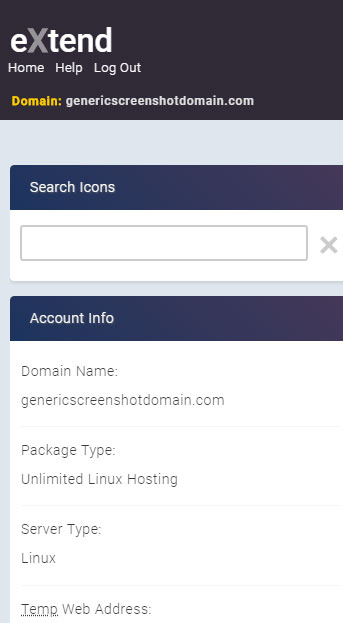
You might notice that this theme goes full-width, rather than being trapped in a 912px box. And when you reduce the browser window, the panels move to match, meaning that your control panel is easy to use on your phone or tablet.
Clearer icons
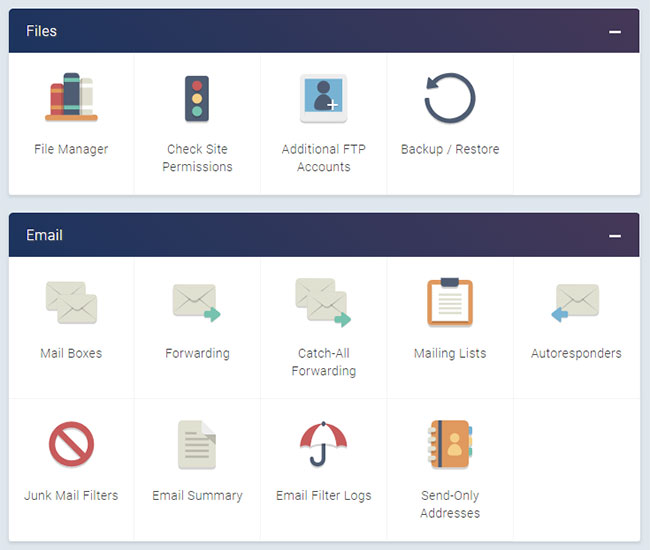
It’s a little thing, but a nice icon can make all the difference when looking at a control panel. Tom redesigned all the icons as well, making the best use of the space available while also making them clear and easy to understand.
FTP lock and unlock
When you’re in the middle of building a site, you can forget whether or not you’ve unlocked FTP. You can spend minutes trying to figure out why FTP isn’t working, only to notice that you forgot to hit that one button.

It’s now much easier to read, easier to unlock, and provides you with all the information you need.

How do I get this new theme?
This theme is available for our Resellers to use on their customers’ eXtend Control Panels. It currently works if you haven’t set up a separate domain for your customers’ control panels – it will have to be extendcp.co.uk.
To access it:
- Log into your Heart Internet Reseller Control Centre
- Scroll down to eXtend Themes in Reseller Preferences
- Select the theme from the list
- Click Apply Brand
- The theme will now appear for your customers
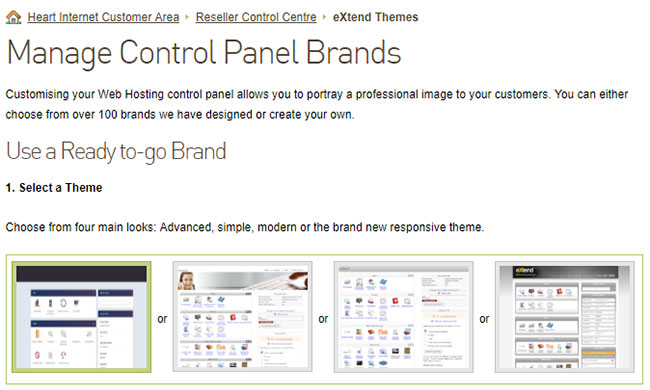
If you have any custom HTML or CSS, it will be applied to the new theme, so please test how the theme looks before applying it for your customers.
If you don’t mind clearing out your custom edits:
- Click Advanced Settings
- Click Clear under Upload HTML Template and Upload CSS File and Preview
- Click Apply Brand
This will remove your custom edits.
How do I customise the theme?
And if you want to customise the theme, you can easily do so.
There are a range of coloured banners you can apply to the top of the page.
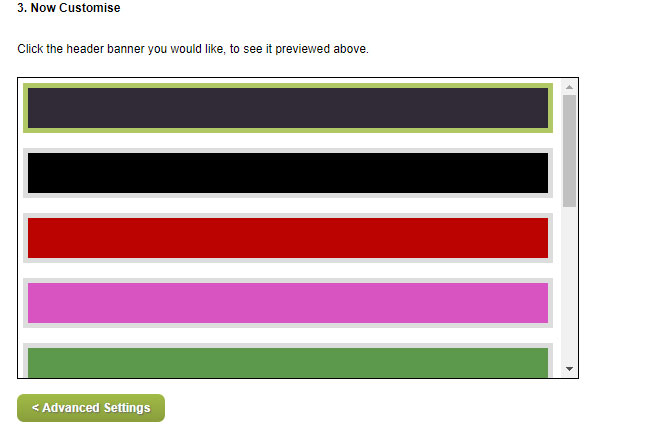
And you can also upload your own image.
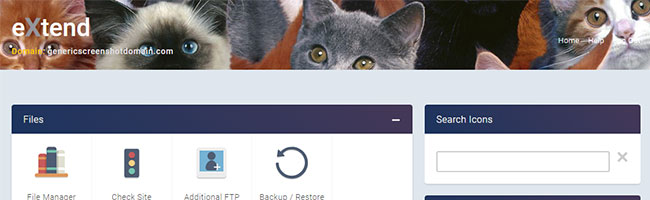
You can also edit the HTML template and CSS in Advanced Settings.
For example, if you’ve uploaded a banner image and want just a bit of drop shadow on the title:
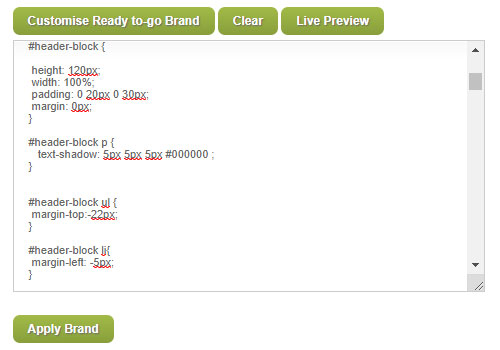
- Click Advanced Settings
- Click Customise Ready to-go Brand under Upload CSS File and Preview
- Scroll down to
#header-block - Right underneath the CSS for
#header-block, add:
#header-block p (
text-shadow: 5px 5px 5px #000000;
} - Click Apply Brand
- You now have a drop shadow on the title and site name

Do you have any feedback?
We hope you like this new theme. If you have any feedback, please leave a comment below or use our Reseller Feedback Form.


Nothing like keeping up with modern web trends… 5 years after responsive sites were pretty much mandatory!!!
We know it’s a bit delayed, but we’ve been working on it for awhile, making sure that everything works.
However, let us know if you find any bugs!
Dear Kate,
Looks great.
Please now concentrate on giving us a Responsive HOSTPAY template. This is what we have all been waiting for.
Change the CSS? padding: 5px 0 0 0; to padding: 0; and then the right hand menu will not over lap the google translator!
A
.translator {
position: relative;
float: right;
height: 55px;
width: 220px;
background: url(images/bg_top_links.png) repeat-x top;
-moz-border-radius-bottomleft: 5px;
-moz-border-radius-bottomright: 5px;
-webkit-border-bottom-right-radius: 5px;
-webkit-border-bottom-left-radius: 5px;
color: #fff;
text-align: center;
padding: 5px 0 0 0;
}
Is there a plan to have the updated look on our separate domain? Also when is the webmail going to updated so it can be used easier on mobile devices?
We’re working on having the updating look on separate domains. And we have plans for our webmail platform that will happen in the new year.
About time! Looks great and hope to try it soon.
Any chance that you might get around to fixing all of the problems with HostPay? Making it responsive would be great – but a waste of time if it’s still broken and your ex resellers only see it if they look back (in anger!!)