

;)
;)
;)
;)
;)
;)

;)
;)
;)
In order to offer free shipping to your customers, you will need to add it as an option in a Shipping Zone.
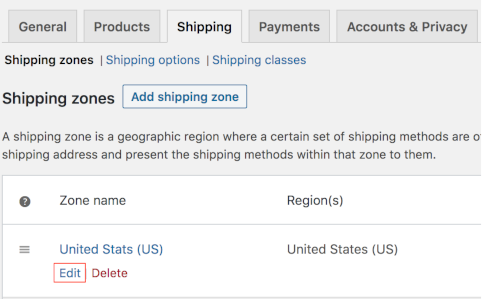
- Navigate to WooCommerce > Settings > Shipping.
- Click the Edit.

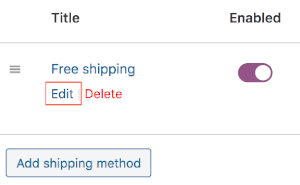
- Click on Add Shipping Method and pop-up menu will appear.
- Select Free Shipping option from the dropdown and Click Add Shipping method.
- Once your free shipping method has been added, click Edit.

- Select any desired specific requirements using the Free Shipping Requiresdrop-down.
- N/A - Free Shipping is available with no requirements.
- A valid free shipping coupon - A coupon is required to receive free shipping.
- A minimum order amount - A minimum purchase amount must be ordered to receive free shipping.
- A minimum order amount OR a coupon - A customer can use either a coupon or a minimum order amount to receive free shipping.
- A minimum order amount AND a coupon - customer must have both a coupon and a minimum order amount to receive free shipping.
Note: If you've selected a Minimum Order Amount option, there are a few additional options to configure.
- Include your minimum amount required.
- Choose whether the minimum amount requirement will be applied before or after coupon discounts.
- Click Save Changes.
 Print Article
 Email Article to Friend
 Export to PDF