


;)
;)
;)
;)
;)
;)
;)
;)
;)
Once you’ve purchased your new Managed WordPress package, you can find it on your customer page under the Manage Products sec
Click Managed WordPress (Services) and you will be redirected to the corresponding page.
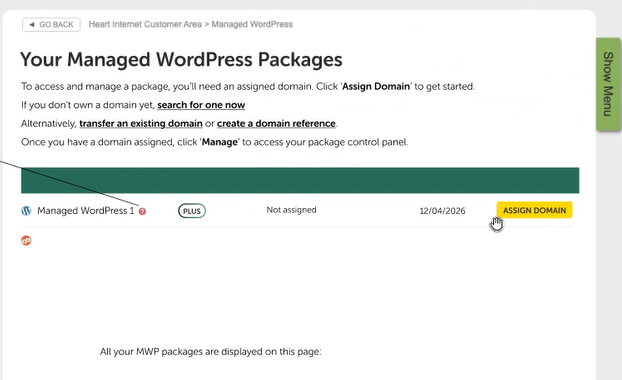
Here, you will see all the Managed WordPress packages in your account and will also be able to assign a domain.
How to assign your domain to Managed WordPress
To assign a domain name, click Assign Domainbutton.
Please note: Domain names already assigned to another hosting package are not eligible for assignment. You will need to remove the domain from the old package before assigning it to your new Managed WordPress package.
Once you proceed, a pop-up window will appear displaying all eligible domain names.
If there are no domain names in your account, you will need to either purchase one or add an existing domain as a reference.
Here is the guide on how to add a domain name as a reference in your Heart Internet account:
Once you’ve selected the domain name from the dropdown menu, click on “however the button is called” to proceed with the domain assignation.
Setting up additional domains
If you wish to add additional domains to your Managed WordPress package, you can do so directly from within the package.
Once you’re logged in to Managed WordPress, click the Create new site button located in the top-right corner.
Once that button is clicked, the following page will be displayed:
If you already have a domain name, you can proceed by adding it below. Make sure to tick Use a domain that you own, as you also have the option to choose a domain later.
After selecting the desired domain, you can either continue through the full setup process—which may take a few minutes while the necessary data is installed—or you can begin directly with the site’s basic details and settings.
If you choose the Walk Me Through option, you will be redirected to the following page, where you’ll need to wait while the data is downloaded and unpacked.
Once the download is complete, you will be redirected to your WordPress website, where you will need to complete the WordPress setup.
 Print Article
 Email Article to Friend
 Export to PDF